
NESTFORGE / PRACTICAL EXAMPLE 01
Eight panels. 11.1% less sheet area.
Which sheet size makes sense for this job? We took eight acrylic panels from an open arcade-case design and tried two options. Both fit every part. The smaller sheets use less material overall.
Same parts. Two sheet sizes.
One larger sheet
900 × 600 mm · 0.54 m² total
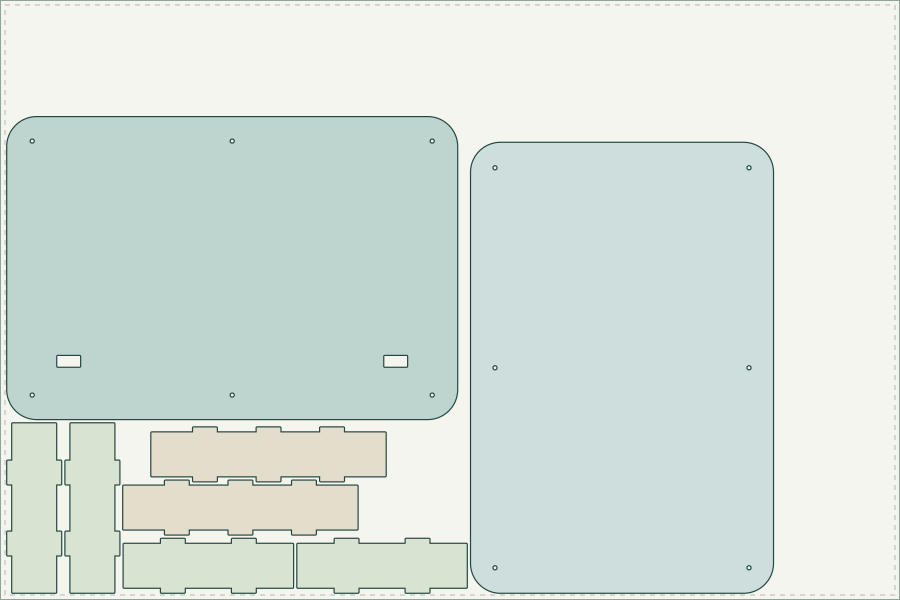
60.4% utilization
Two smaller sheets
2 × 600 × 400 mm · 0.48 m² total
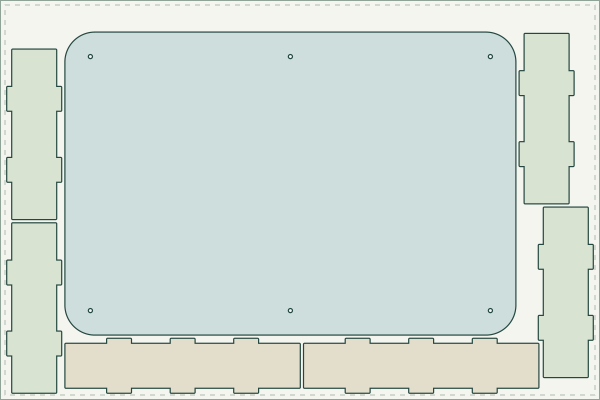
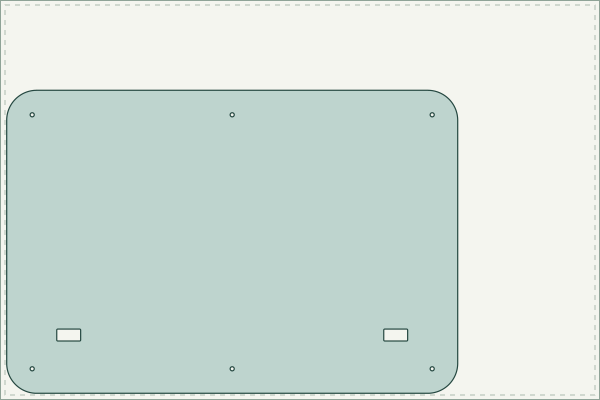
68.0% utilization across both sheets
Actual NestForge layouts, with colors added for readability. All three sheets are shown at the same scale.
Where the 11.1% comes from
The first option needs 540,000 mm² of stock. The second needs 480,000 mm². That is 60,000 mm² less, or 11.1% of the larger option. Part quantities, geometry, material thickness and nesting settings stay the same.
| One sheet | Two sheets | |
|---|---|---|
| Sheet size | 900 × 600 mm | 600 × 400 mm |
| Sheets used | 1 | 2 |
| Parts placed | 8 of 8 | 8 of 8 |
| Total sheet area | 0.54 m² | 0.48 m² |
| Material utilization | 60.4% | 68.0% |
| Smallest part gap | 3.204 mm | 3.202 mm |
This compares the total area of these sheet sizes, not a measured saving against a hand-made layout. Sheet prices, cutting time and the usefulness of the remaining offcuts are separate decisions.
Try the same job yourself.
The one-sheet project runs and exports in the free version. No account or license is needed. Everything is already set up: parts, quantities, sheet size and spacing.
The complete pack includes both projects, four prepared DXFs, original source files, DXF/SVG/PDF results, illustrated English and German guides, and source credits. Recalculating or exporting the two-sheet project requires the full license; its supplied results are free to download.
From download to cut layout
- Download the one-sheet .nest file, then open NestForge using the button above.
- Choose Open .nest (or drop the file into the import area). Check that you see 8 pieces and one 900 × 600 mm sheet.
- Click Nest. The result places all 8 parts and shows the overlap, sheet-boundary and spacing checks.
- Export DXF, SVG or a PDF cut sheet. For DXF, choose strict R12 POLYLINE and leave Include sheet outline off. SVG and PDF also show the sheet frame; use the DXF part contours for cutting.
What is in this job?
These are the eight 3 mm outer panels of an acrylic arcade-controller enclosure designed by Jasen's Customs. The 5.6 mm inner layer and printed supports are separate parts and are not mixed into this material job.
| Part | Quantity | Bounding size |
|---|---|---|
| Top outer panel | 1 | 451 × 303 mm |
| Bottom outer panel | 1 | 451 × 303 mm |
| Long side | 2 | 235.402 × 55 mm |
| Short side | 4 | 170.5 × 55 mm |
The settings behind the result
Millimeters · Draft effort · seed 42 · 0°, 90°, 180° and 270° rotation · no mirroring · 5 mm sheet margin · 3 mm minimum spacing · 0.2 mm kerf. Both results place every part and pass the independent geometry checks. The exported DXFs preserve all 22 closed contours, including the mounting holes and screen openings.
Design, preparation and files
Case design: Jasen's Customs, FightStickLayoutProject. Source revision d86b5fbc7fb8b03896b8c41c91b7898a2b663242. The original drawings and these adapted example files are shared under CC BY-SA 4.0. Madegrain prepared the nesting jobs, layouts and this guide on 20 September 2026.
Preparation: duplicated CENTERX2 construction entities were removed from the top and bottom files. The remaining cut geometry was kept; the side files are unchanged. The project translates contours to a local origin without resizing them. Originals, full license, upstream notices and a change record are in the pack.
This is a tested digital nesting example. The upstream case design has not yet been physically cut or assembled. For an actual build, follow the original design notes and check the material fit.