
What PatternNest's import messages mean and what you can do
When PatternNest can't use a file or an outline, it says why. Most messages point to something you can change in a few clicks: another size layer, another page or a copy of the file without a password.
When the file does not open
| Message | What it means | What you can do |
|---|---|---|
| “This file could not be read as a PDF (…)” | The file is damaged or not a real PDF. | Download it again. If it opens in other PDF programs, send it to [email protected]. |
| “This PDF is password protected. Please save an unprotected copy first.” | The file needs a password to open. | Open it with the password in your PDF program, save a copy without protection and load that. |
| “No supported vector outlines found. Scans and photos cannot be imported.” | The page holds pictures, not lines. | Use a vector version of the pattern, for example the projector or A0 file. |
| “PatternNest stopped while … ” or “PatternNest got no further for … seconds” | The browser could not finish a step. | Update the browser or try another one. If it keeps failing, send the file. |
| “That PDF is … MB. This preview handles up to 20 MB.” | The file is too large. | Use the projector or A0 file of the pattern instead of a file with pictures. |
| “This page has more than 20000 outlines.” | Often the text was converted to lines. | A version of the file with real text usually works. |
Next to an outline in the PDF import
| Message | What it means | What you can do |
|---|---|---|
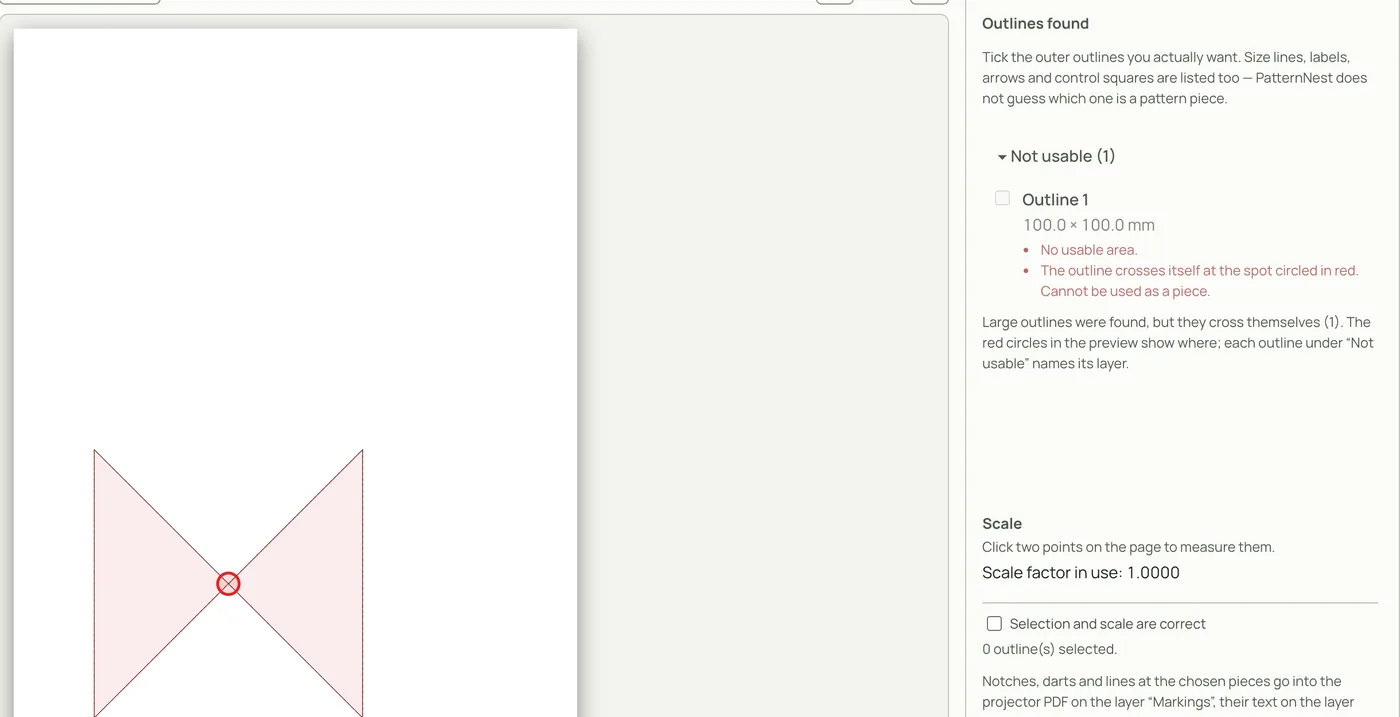
| “The outline crosses itself at the spot circled in red (layer: …)” | Two lines cross. In projector files this is often where the lines of two sizes meet. | Under “Layers in this file”, switch on only your size with “Only this”. If it still crosses, the line in the file really crosses: fix it in a drawing program or send the file. |
| “The outline had … small loop(s) at corners or notches … They were cut off” | Tiny loops in the cutting line, which some projector files have at corners and notches. | Nothing. The piece is usable; check the corners in the preview. |
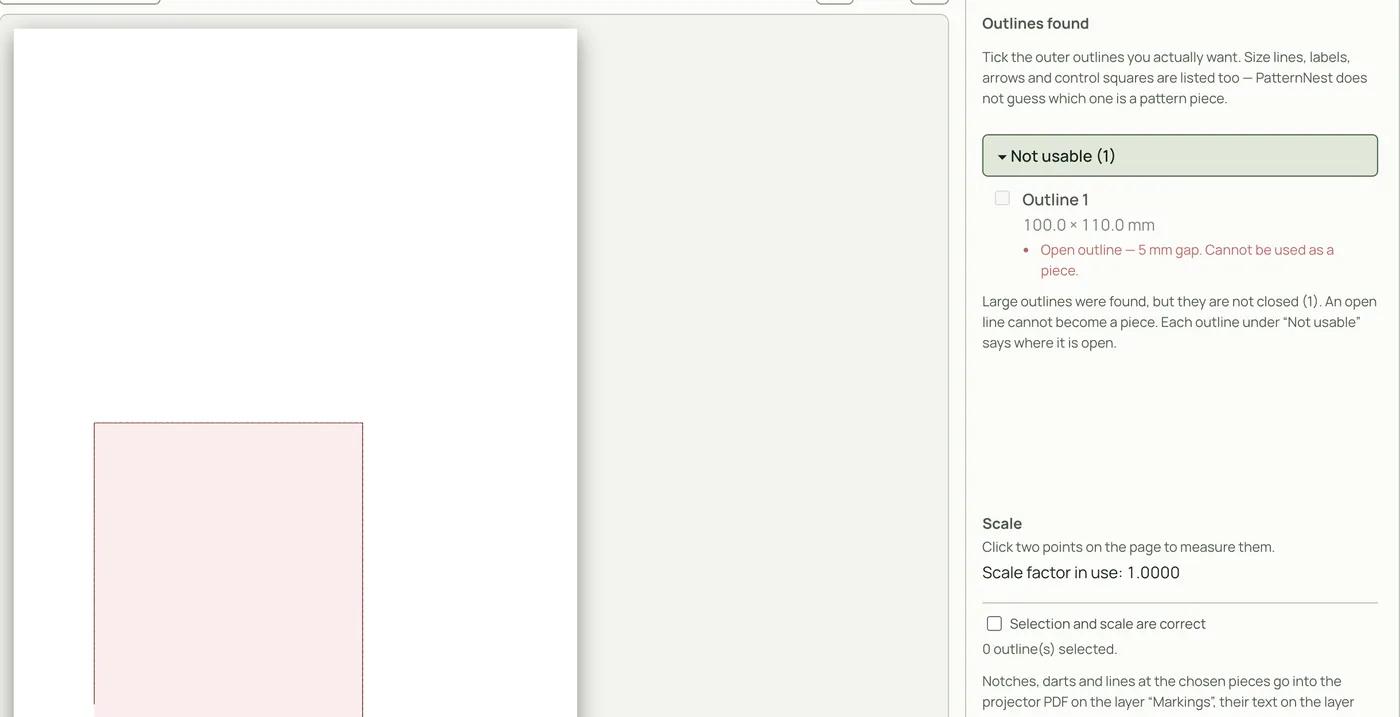
| “Open outline” with the gap in mm, “Cannot be used as a piece.” | The cutting line is not closed. | Look for the same piece on another layer or page. Otherwise close the line in a drawing program. |
| “Two lines did not meet exactly (… mm). The corner was closed” | A tiny gap at a corner was closed. | Check that corner in the preview. |
| “Reaches past the visible page, so part of it is cut off.” | The piece runs over the edge of this page. | Use the file or page where the piece is complete, usually the projector or A0 file. |
| “A clipping area cuts this outline.” | The file hides part of the line. | Use another version of the file, for example the projector file. |
| “Very small”, probably a notch or marker | Notches, symbols, small boxes. | Leave it unticked. |
| “Another outline sits in the same place” | For example cutting line and seam line on top of each other. | Tick the outer one, the cutting line. |
The PDF import lists every outline it finds. Usable ones are under “Likely pattern pieces” and “Smaller outlines”, the others under “Not usable”, each with its reason. A red circle in the preview marks where a line crosses.
After the import
| Message | What it means | What you can do |
|---|---|---|
| “… imported without seam allowance …” | The allowance line in the file is open or crosses itself, so the seam line was used. | The fabric length comes out too short for this piece. Fix the allowance line in the file or plan extra fabric. |
| “… skipped because the cutting line crosses or touches itself.” | An SVG or DXF piece whose line crosses. | Clean up the piece in your drawing program and import it again. |
| “Piece … has an open outline (gap … mm).” | An SVG or DXF line that is not closed. | Close the line in your drawing program. |
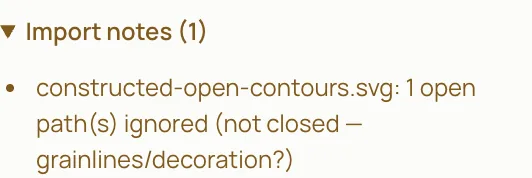
| “… open path(s) ignored (not closed …)” | An SVG has lines that are not closed, for example grainlines, decoration or a piece outline with a gap. They were left out. | If a piece is missing from the list, close its line in your drawing program and import the file again. |
| “Units ambiguous” | The file does not say if it is in mm, cm or inches. | Compare the size of one piece in the list with the pattern. |
| “Piece … does not fit on this fabric, even alone.” | The piece is wider than the fabric with its direction. | Check the fabric width and the direction of the piece. |
These notes appear under “Import notes” in the piece list.
Send the file
If a file opens in other programs but not in PatternNest, or a message makes no sense for your file, send it to [email protected] and say which browser you use. Files are only used to fix the problem.
Further reading
Which pattern files work in PatternNest. Choosing one size in a projector file: Projector sewing.