
Only your size from a multi-size PDF pattern: delete layers, don't just hide them
Hiding the other sizes in Acrobat or Reader doesn't change the file. It opens at the copy shop the way it was saved, often with every size. Here's how to make a file that holds only your size, for free, and how to pick the size straight in PatternNest if you cut with a projector. Everything was tried on an A0 file with five sizes that you can download.
Why hiding a layer doesn't change the file
Projector and A0 files usually put each size on its own layer. In Acrobat or Reader you click the eye in the Layers panel and the other sizes disappear from the screen. The file itself doesn't change. According to Adobe's help, the eye icon only overrides visibility temporarily. To change it for good, you edit the layer's default state in Layer Properties in Acrobat (Adobe: Manage PDF layers).
When you send the file to a copy shop, it opens there the way it was saved. In the A0 projector file from a German pattern label that I bought and checked, that means all seven sizes. In the example below it means all five.
Even a saved state with only one size keeps the other sizes in the file. Programs that respect layers hide them. A program that doesn't know about layers draws everything on top of each other. You usually can't tell in advance which program runs the copy shop's printer. The only safe file is one where the other sizes aren't drawn at all.
Make a file with only your size, for free
PDFStitcher is a free, open source program by Charlotte Curtis for Windows, Mac and Linux. It assembles tiled pattern pages and can edit layers. I tried version 1.2 on two files: the Teagan example below and the bought projector file with seven sizes and a layer for labels.
- Open PDFStitcher and on the “Options” tab choose your PDF under “Select input PDF”.
- Tick “Process Layers”. You don't need “Tile pages” for a projector file, it's already one large page.
- On the “Layers” tab, leave only your size ticked, plus the labels layer if there is one. Keep “Include non-optional content” on.
- Set “Deselected layers” to “Delete”, not “Hide”.
- Back on the “Options” tab, pick a new file name under “Save output as” and click “Generate PDF”.
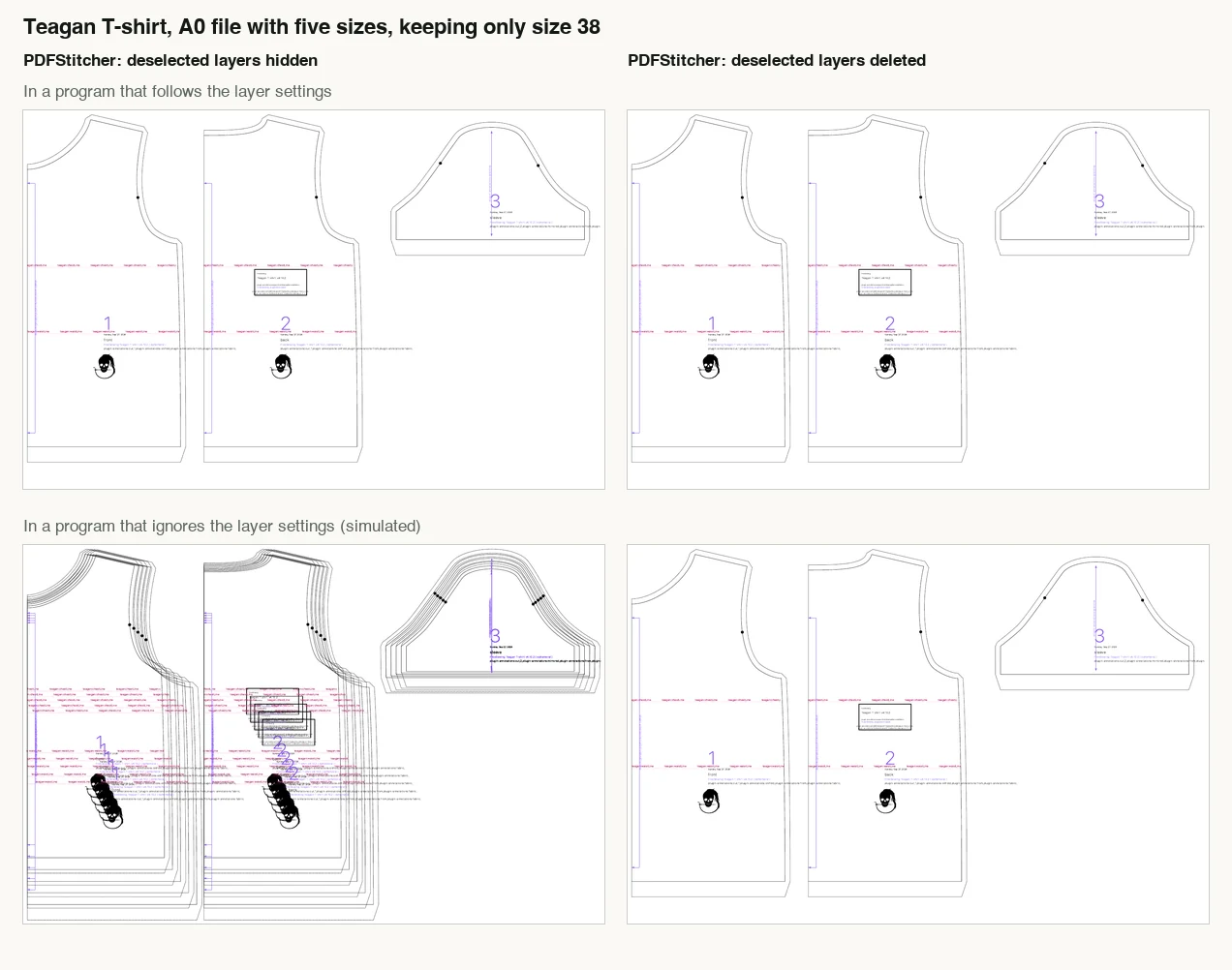
What you get
With “Delete”, the other sizes are no longer drawn, in any program. The file barely gets smaller, but only your size is on the page. With “Hide”, they're only switched off, as described above. The bought file gave the same result: after “Delete”, size 110 and the labels were left.
You can also tell the copy shop which layer to print. Whether that works depends on the program at their printer, which I haven't tested. A file with only your size drawn doesn't need that conversation.
According to Adobe, Acrobat Pro can also merge and flatten layers (Adobe: Merge and flatten layers). I haven't tried that, since I don't have Acrobat Pro.
For the projector: pick the size in PatternNest
If you cut with a projector, you don't need to delete anything from the file first. PatternNest, which I build, shows the file's layers when you import a PDF. You pick your size, lay the pieces out on your fabric width and export a 1:1 projector PDF that shows only your cutting layout.
PatternNest doesn't make pattern pages to tape together or a file for A0 printing. For paper, PDFStitcher is the way to go.
The example is the Teagan T-shirt from FreeSewing, designed and coded by Joost De Cock, open source under the MIT license. I generated it with FreeSewing 4.10.2 in sizes 34 to 42, using FreeSewing's sample measurements "cisFemaleAdult34" to "cisFemaleAdult42" and 10 mm seam allowance. Each size sits on its own layer, "Size 34" to "Size 42", all switched on. I added the layers for this example, the way projector files are built. This article isn't affiliated with FreeSewing.
- In PatternNest, click “Choose files…” under “Pattern pieces” and pick the PDF.
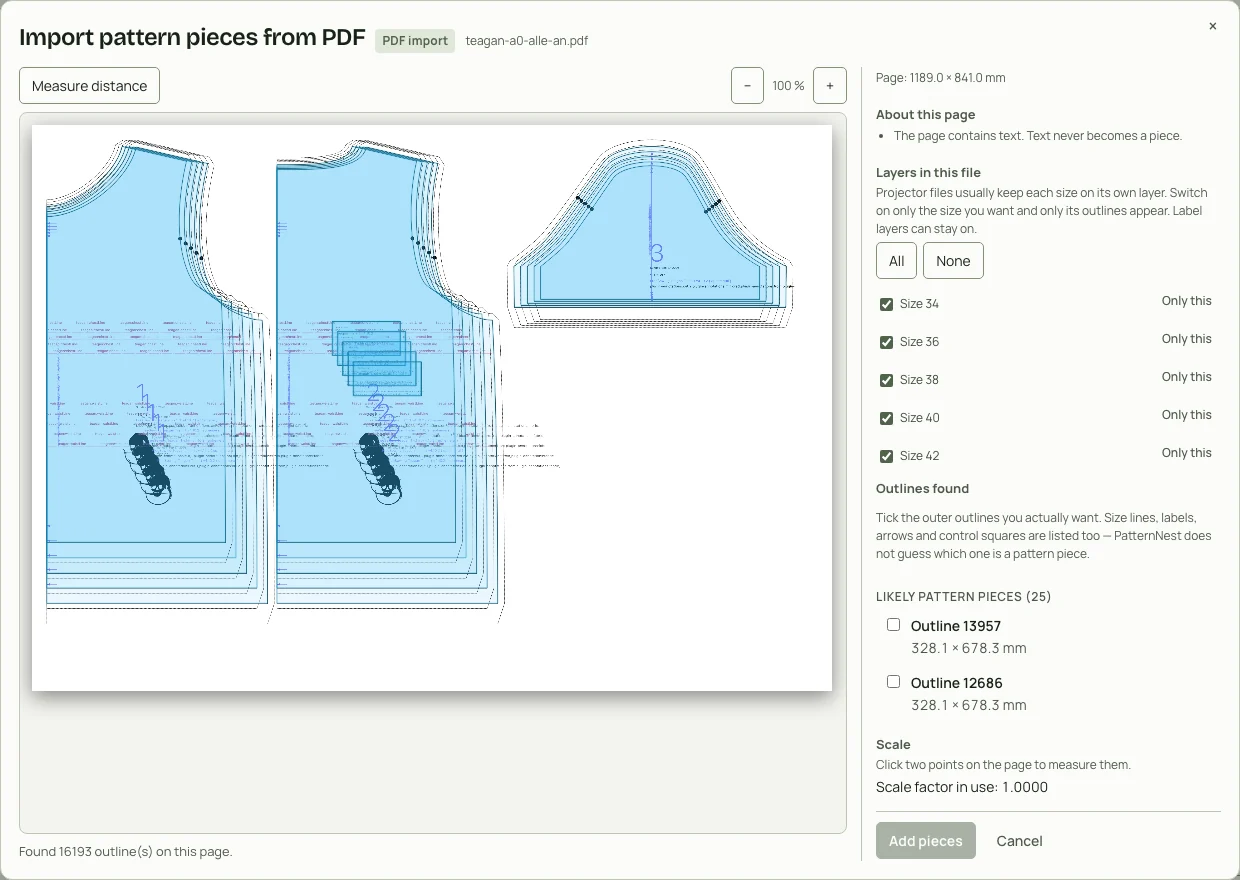
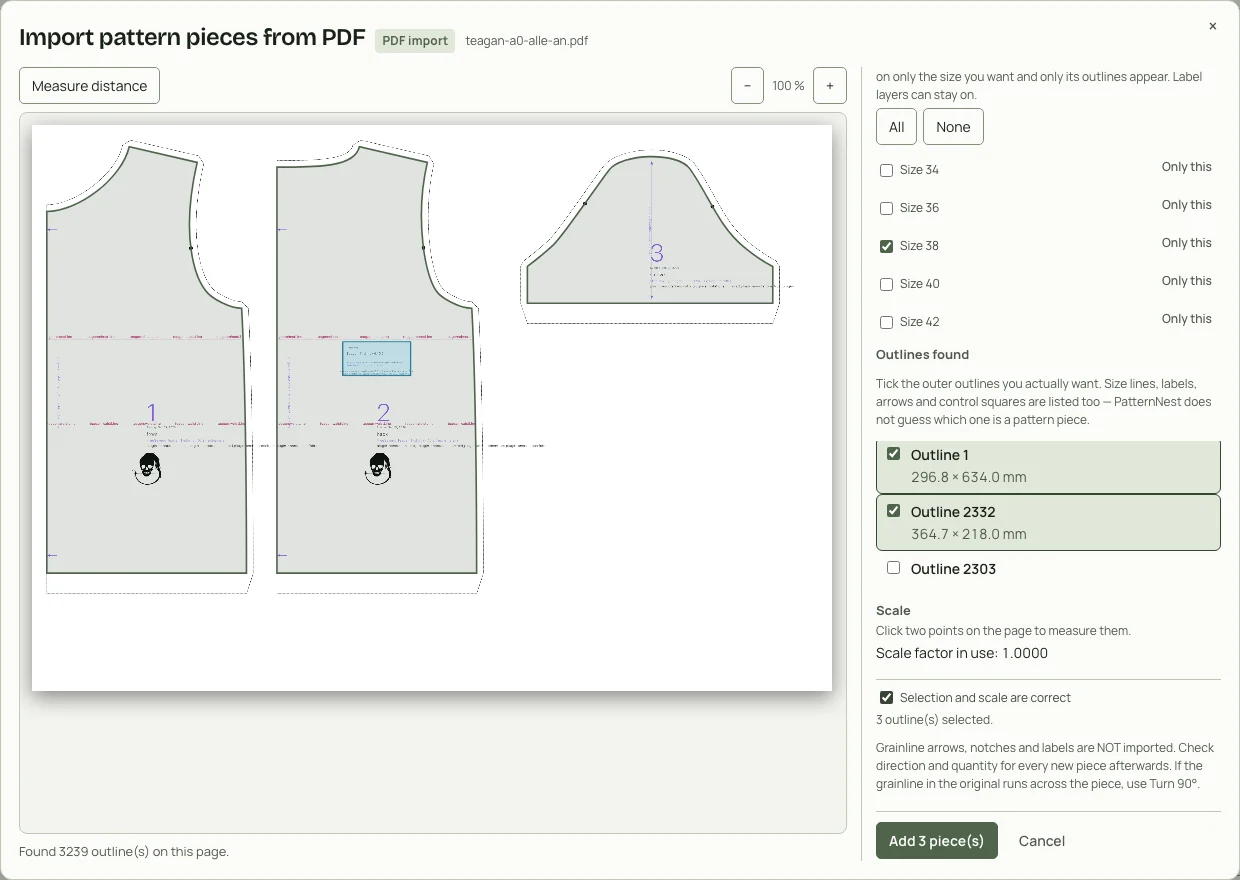
- The import dialog lists every size under “Layers in this file”. Click “Only this” next to Size 38. The list of found outlines shrinks from 25 to 5.
- Tick front, back and sleeve. The two small rectangles are FreeSewing's scale boxes, leave them out. Tick “Selection and scale are correct” and click “Add 3 piece(s)”.
- Front and back are cut on the fold. Click “Set fold edge” on both, choose the straight centre edge and then “Use selected fold edge”. For the sleeve, tick “Cut as pair (mirrored)”.
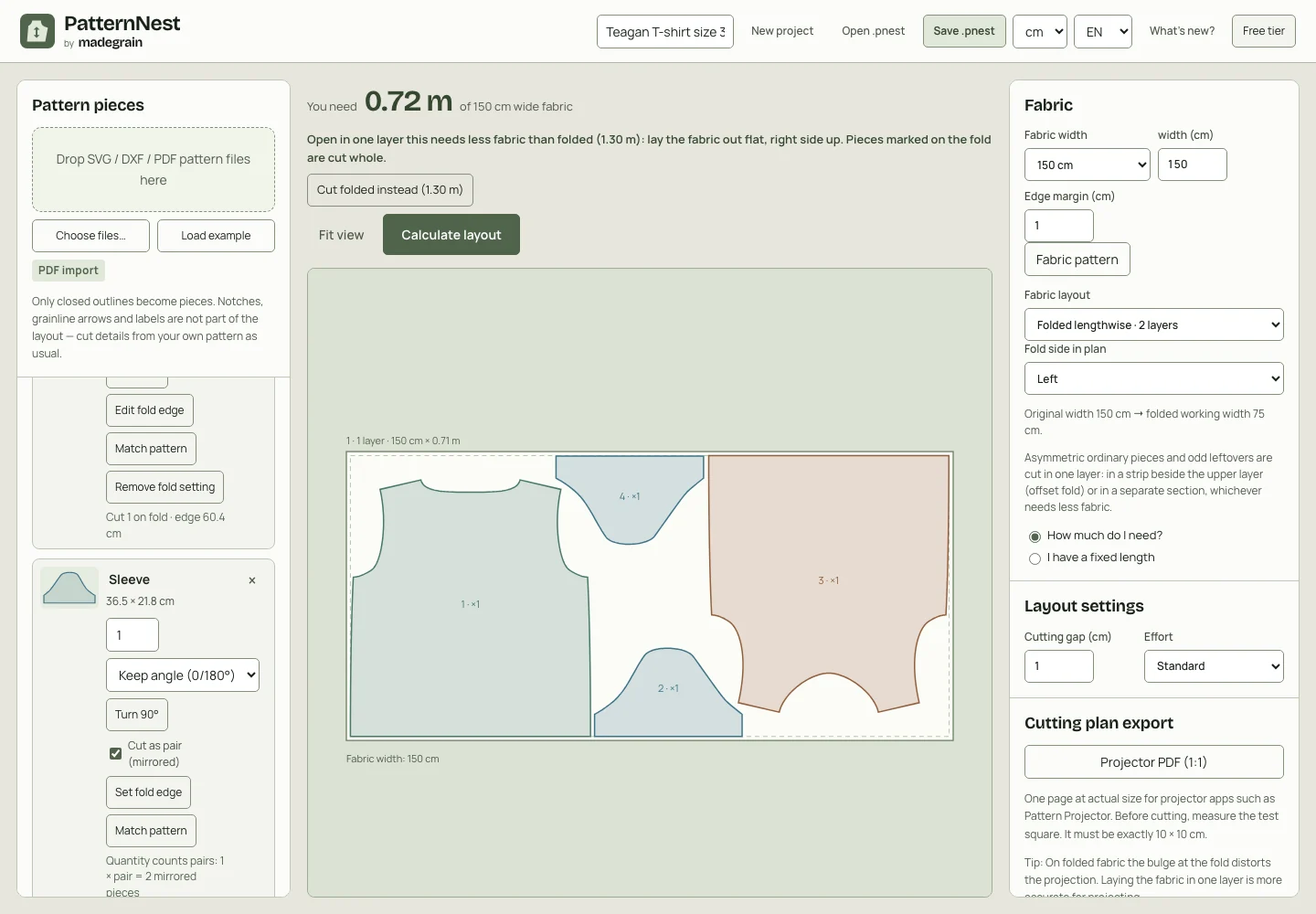
- Under “Fabric”, choose the fabric width, 150 cm here. The layout “Folded lengthwise · 2 layers” is preset. Click “Calculate layout”.
- Under “Cutting plan export”, click “Projector PDF (1:1)”. Before cutting, measure the test square in the projected image: it has to be 10 × 10 cm.
The result: fabric needed and the projector PDF
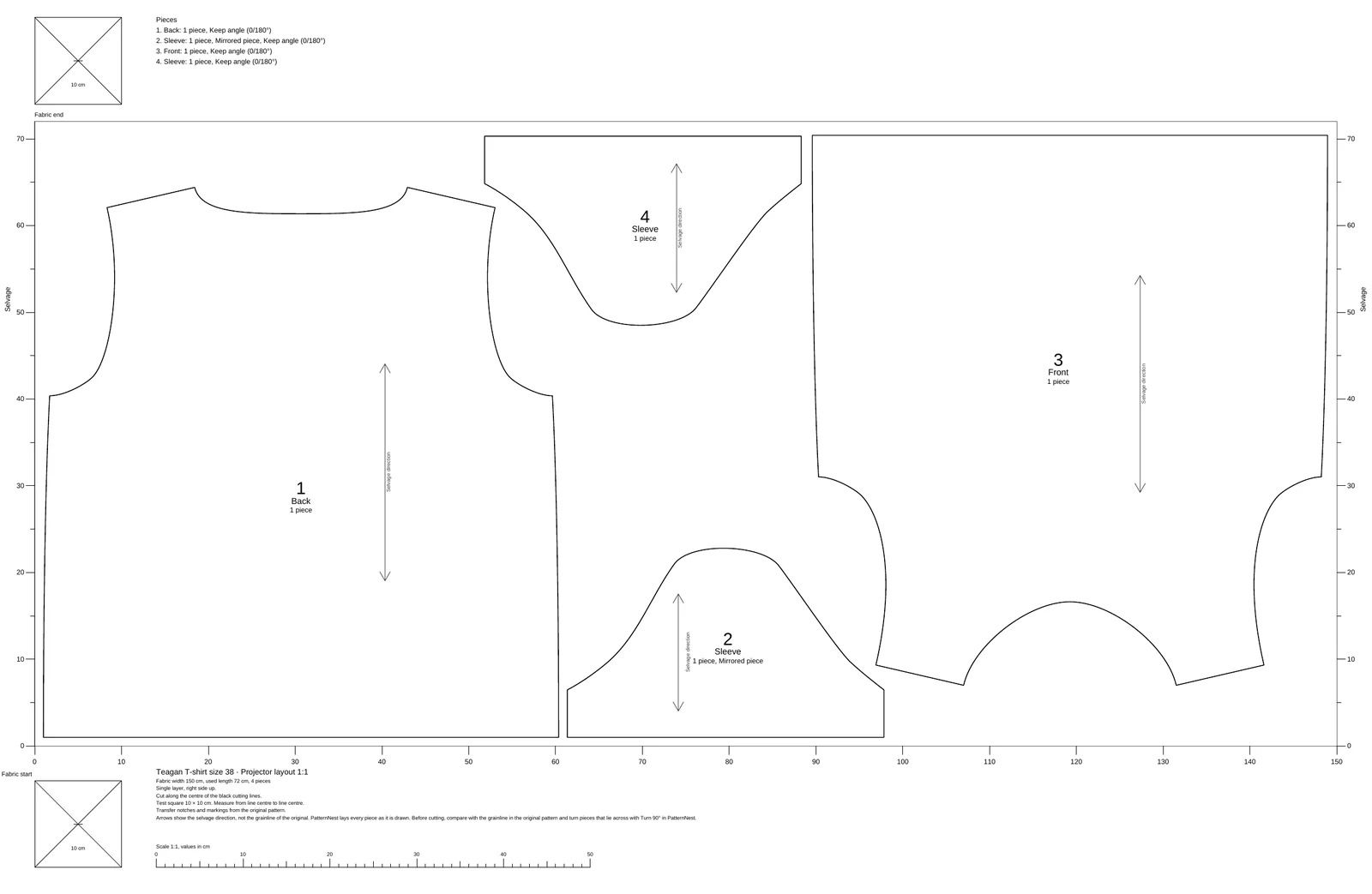
Front and back on the fold, two mirrored sleeves, no neckband, since that isn't a separate piece in FreeSewing's file. With 1 cm margin and 1 cm spacing, size 38 needs:
| Fabric width | Single layer | Folded lengthwise |
|---|---|---|
| 110 cm | 1.06 m | 1.40 m |
| 140 cm | 0.81 m | 1.30 m |
| 150 cm | 0.72 m | 1.30 m |
On folded fabric, PatternNest also works out a single-layer plan. If that one is shorter, it shows it with a note. On 150 cm the top says “You need 0.72 m” and below that “Cut folded instead (1.30 m)”. Pieces marked on the fold are then cut whole from the opened-out fabric. These lengths are calculated for these pieces and settings. Nobody has cut or sewn the T-shirt from them.
The projector PDF holds only the four size 38 pieces on 150 cm, with a ruler along the edge, fabric start and end and two test squares. How to calibrate it and what it leaves out is in the projector sewing guide.
Download and try it
You can try the five-size example file in PDFStitcher and in PatternNest yourself. Open the .pnest project in PatternNest with “Open .pnest”, then click “Calculate layout”.
How I tested
I ran PDFStitcher 1.2 from its command line, which uses the same layer function as the program window. The labels in the steps are taken from the English interface of that version.
I opened the files in four PDF renderers: PDFKit (macOS), PDFium (Chrome), MuPDF and Poppler. All four respect the saved layer state. For the view without layer support, I removed the layer information from a copy.
PatternNest: the version that was online on 29 October 2026. I went through import, layout and export in the live app and recalculated the lengths with the same program code.
Further reading
The whole projector workflow is in Projector sewing: lay out pieces on your fabric width. For pattern designers with graded projector files, see From a graded projector PDF to a fabric layout. How the fabric width changes the length is in Convert fabric width.
Sources
FreeSewing Teagan, sizes 34 to 42 ("cisFemaleAdult34" to "cisFemaleAdult42"), 10 mm seam allowance, FreeSewing 4.10.2. Design and code by Joost De Cock, MIT license. PDFStitcher 1.2 by Charlotte Curtis. Adobe Acrobat help on PDF layers. Example file, tests and article: Cayan / Madegrain.