
Calibrate your projector with the test square in the projector PDF
Yes, the projector needs calibrating, and that happens in the app you project from, not in PatternNest. The projector PDF gives you a test square and rulers so you can check that the calibration is right before you cut.
What's on the page
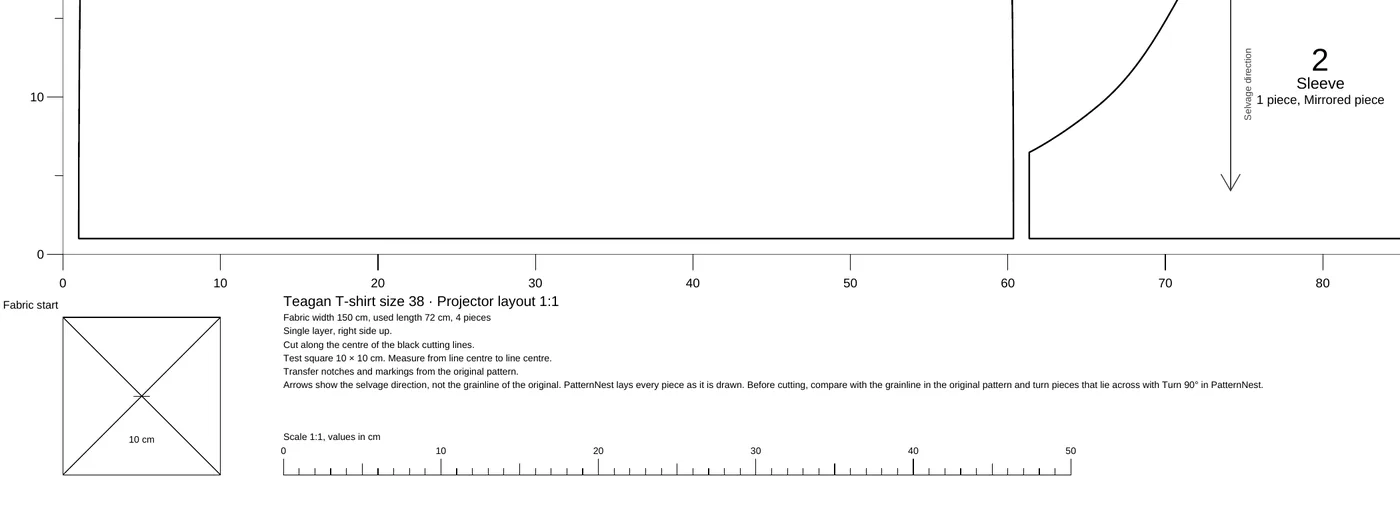
Every projector PDF from PatternNest is one page at actual size: as wide as your fabric and as long as the fabric the plan uses. Outside the fabric area there is a band at the fabric start and one at the fabric end. Each band has a test square of 10 × 10 cm, or 4 × 4 in when PatternNest is set to inches.
Rulers run along the selvages. In centimetres they have a tick every 5 cm and a number every 10 cm, in inches a tick every inch and a number every 6 in. You can check the scale with them anywhere on the plan, not only at the square. In centimetres, the band at the fabric start also has a 50 cm scale with a tick every centimetre.
Calibrate and measure
- Calibrate the projector the way your projector app describes it. In Pattern Projector you start with “Start Calibrating”, drag the corners of the projected grid onto the lines of your cutting mat and then click “Project”.
- Export the plan in PatternNest under “Cutting plan export” with “Projector PDF (1:1)” and open the file in your projector app. Don’t scale it yourself. The calibration takes care of the size.
- Move the plan so the test square at the fabric start is projected onto your mat. Measure both sides with a ruler, from the centre of one line to the centre of the other. The note next to the square says the same.
- Check a longer distance too. Lay a tape measure along the projected ruler, for example over 50 cm or 20 in. A small error adds up over a long piece.
- If a value is off, calibrate again in the app and measure again. Don’t correct it by scaling the PDF.
When the square is right but a piece is not
On folded fabric the bulge at the fold distorts the projection. A single layer is more accurate under a projector, and PatternNest says so in the export area when your plan is folded.
Most projectors cover less than the whole plan. When you move the PDF in your app to the next part of the fabric, check the ruler at the selvage there before you cut.
From a page length of 5.08 m, PatternNest saves the page at 1:1 using the PDF setting UserUnit and says so after the export: “The page is longer than 5 m”. Apps that ignore this setting show the page scaled down. The test square shows it right away.
If you work in inches, switch “Units” in PatternNest before the export. The square is then 4 × 4 in and the rulers are in inches.
Further reading
How to get from a projector file to the plan: Projector sewing: lay pattern pieces out on your fabric width. Which layers the projector PDF has and how to switch them off in Pattern Projector: the projector PDF in Pattern Projector. Notches, darts and labels in the projector PDF: projector PDF with notches and labels.