
The projector PDF in Pattern Projector and other apps: switch layers on and off
Yes, you can use the layout in Pattern Projector. The projector PDF from PatternNest is an ordinary PDF page at actual size, so apps that project PDFs can open it like any projector pattern. Its content sits on named layers that you can switch off while you cut.
Open the file
- In PatternNest, calculate the plan and click “Projector PDF (1:1)” under “Cutting plan export”.
- Move the file to the device you project from, for example your tablet.
- Open it in your projector app. In Pattern Projector that is “Click (or tap) to open a pattern”. Calibrate as usual and measure the test square.
Inverted colours and thicker lines
PatternNest draws only lines and text on an empty page, without fills or pictures. Projector apps that invert the colours or make lines thicker, like the “Line weight” tool in Pattern Projector, work with it the same way as with a bought projector file.
The layers
A layer only appears when your plan has something on it, so a plan without pattern matching has no “Pattern matching” layer.
| Layer | What's on it | Tip |
|---|---|---|
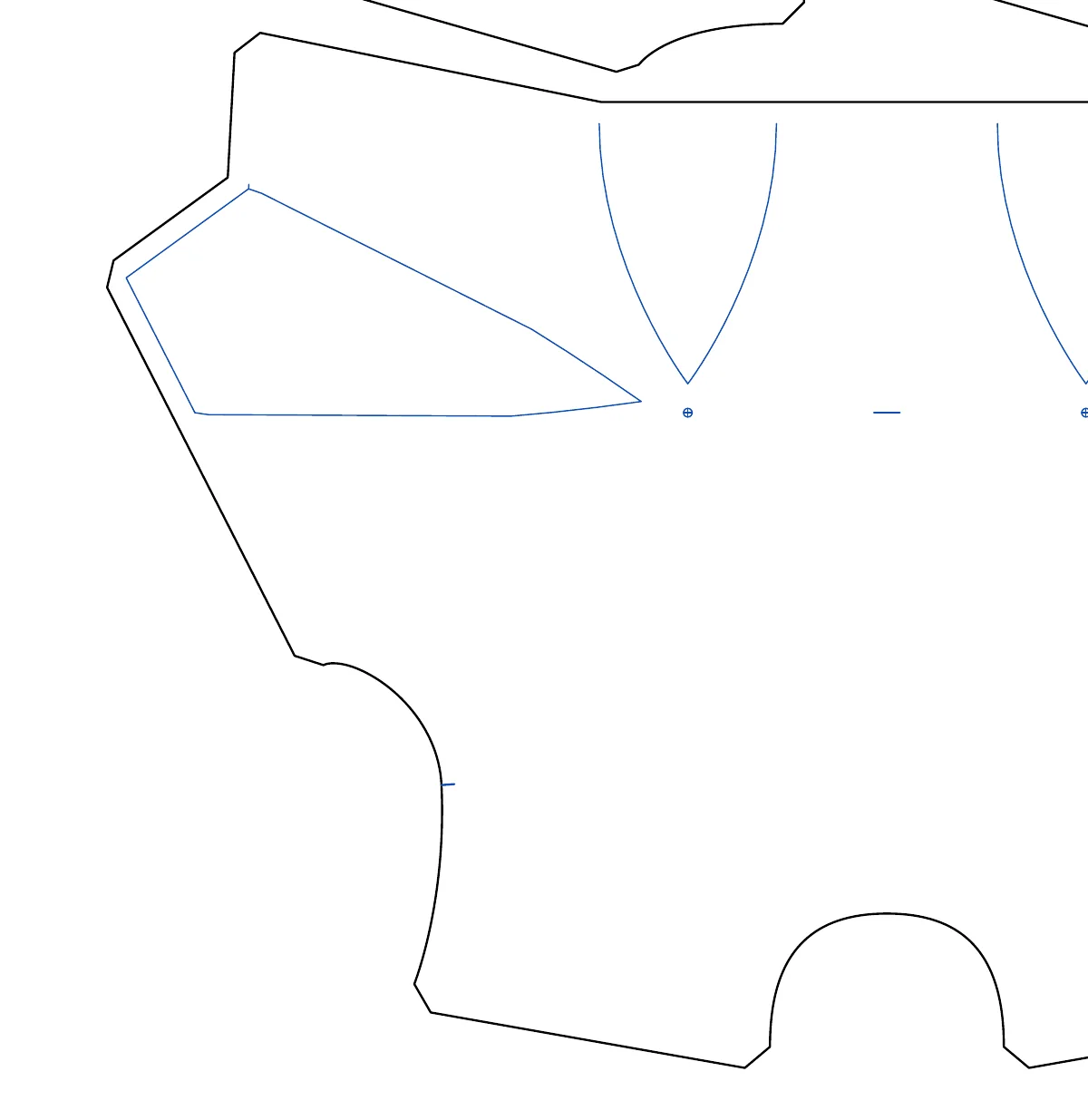
| Cutting lines | The outlines you cut along | Keep on |
| Fold | The fold line “Fold, do not cut”, only in folded plans | Keep on |
| Direction arrows | Arrows for the selvage direction or a one-way print | Off once the fabric lies right |
| Labels | Piece numbers, the piece list and the notes from PatternNest | Off while cutting |
| Fabric edges and rulers | Selvages, fabric start and end, rulers | On to check the scale |
| Test square | The 10 cm (4 in) squares | Off after measuring |
| Pattern matching | Crosses on motif points and the repeat grid, only with pattern matching | On while laying the fabric |
| Cut across | Where to cut the fabric across between two sections | Keep on |
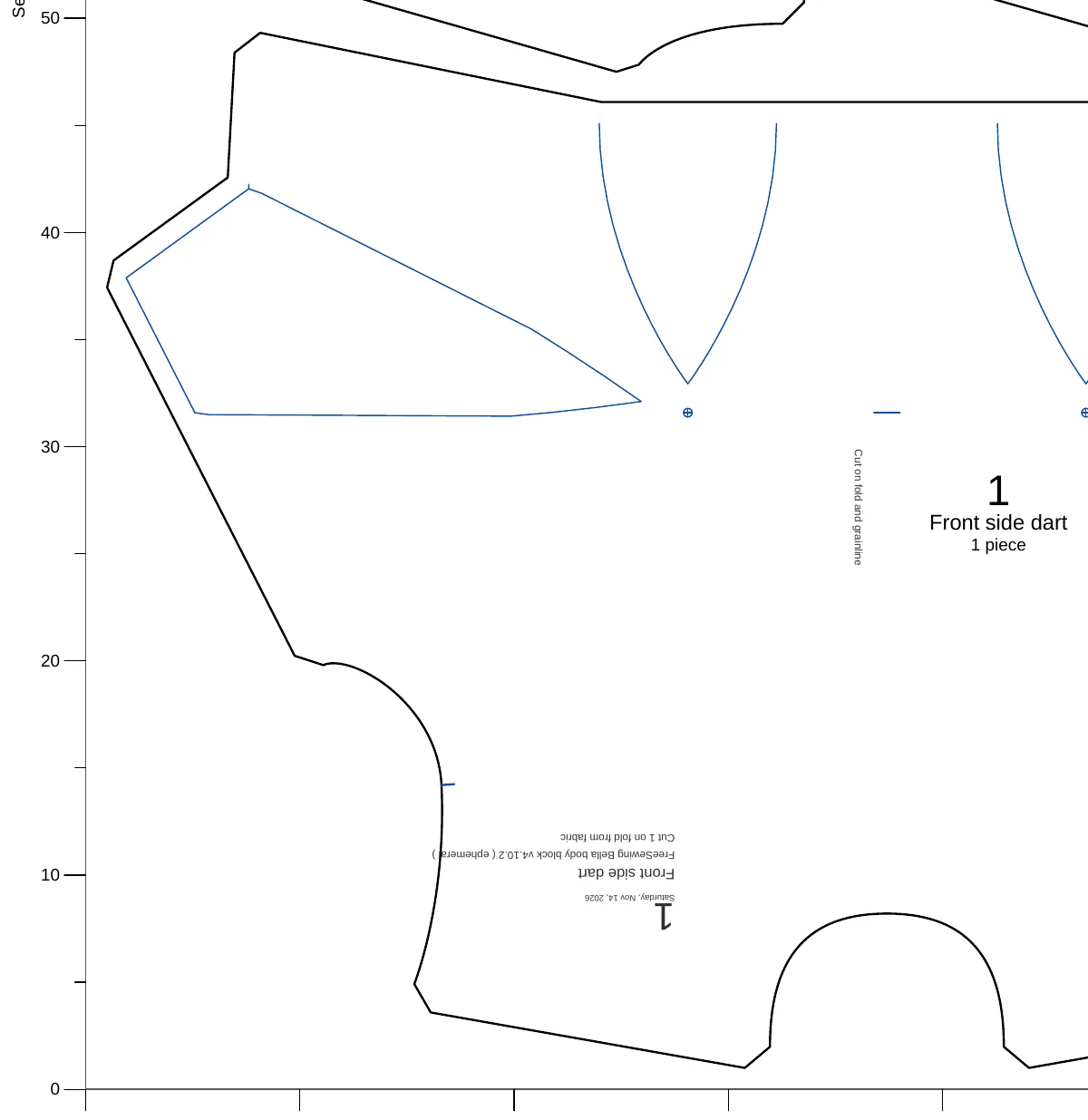
| Markings | Notches, darts, drill holes and grainline from your file | On while marking |
| Labels from the file | Piece names and cutting notes from your file | As you like |
Switching layers in your app
In Pattern Projector the tool is called “Show or hide layers”. It lists the layers by name, and you switch each one on or off. Other apps that can show PDF layers have a similar list, often called layers or optional content. In Adobe Acrobat Reader it is the Layers panel.
If your app doesn't show PDF layers, it displays everything that is switched on in the file. That's all layers. The plan is still usable that way; it just shows more lines.
Cutting a long plan
The plan is one page as long as the fabric it uses, usually longer than your projection area. Cut what is projected, move the PDF in your app to the next part and check the ruler at the selvage again before you cut on.
If you would rather project straight from PatternNest and go piece by piece, that is what the <a href="/patternnest/add-ons/cutting-companion/">Cutting companion</a> add-on does.
Further reading
Calibrate your projector with the test square. Where notches and labels in the PDF come from: projector PDF with notches and labels. The whole way from a projector file to the plan: Projector sewing.